Introduction
Available on a Dev or Full seat on the Organization, and Enterprise plans
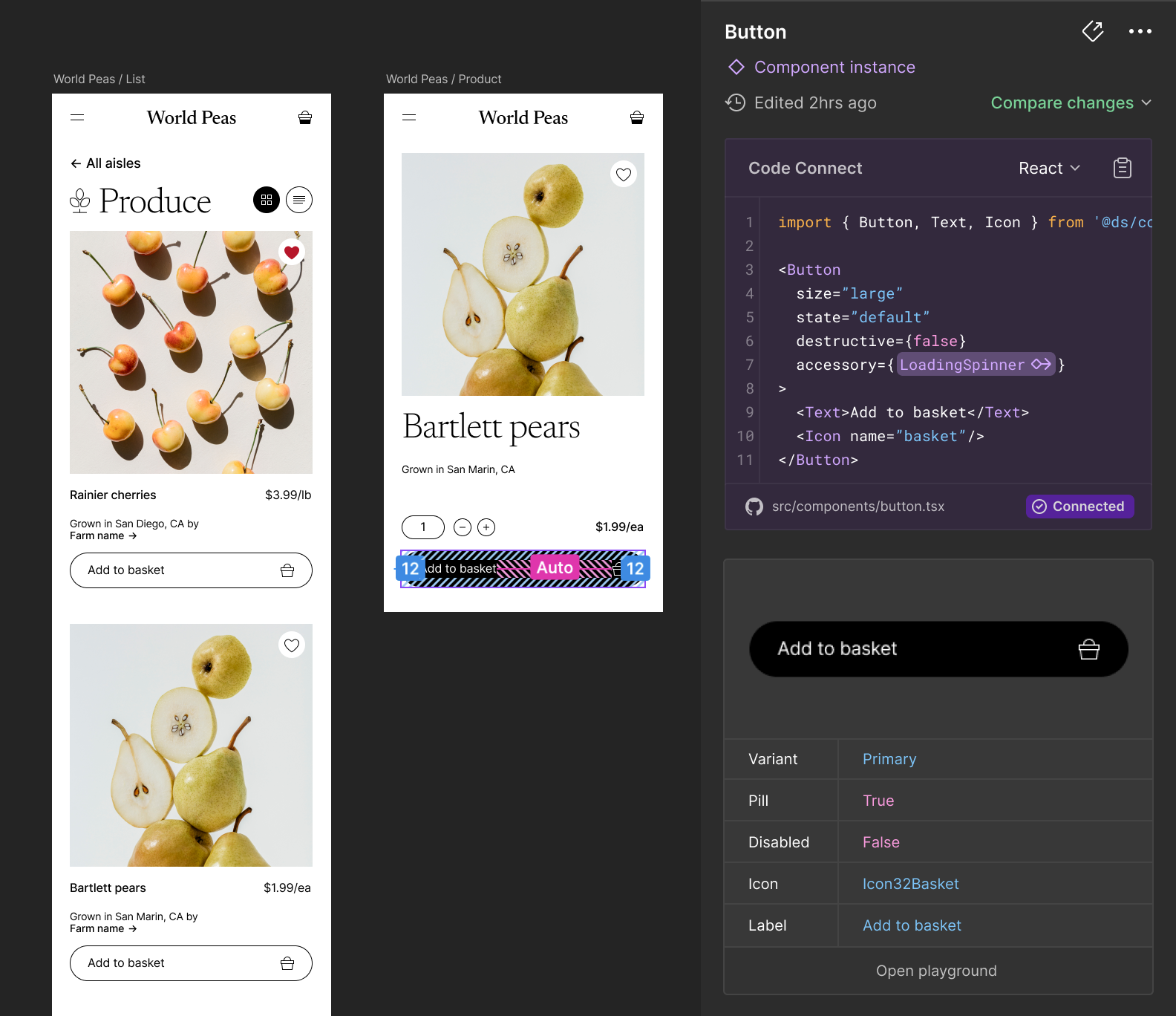
Code Connect is a bridge between your codebase and Figma’s Dev Mode, connecting components in your repositories directly to components in your design files. When implemented, these connections enhance the Figma MCP server's ability to guide AI agents with more precise implementation details by giving them direct references to your actual code.
Code Connect CLI
Make your design system easily accessible to your developers and create a shared source of truth for both the design and code elements.
Our getting started guide will walk you through the process of setting up Code Connect CLI and publishing your first components. Getting started with Code Connect CLI →
Code Connect UI
Code Connect UI lets you connect components directly within Figma, with GitHub integration for repository access and mapping context. Code Connect UI supports one-to-many connections, letting you map a single design component to multiple code implementations across different frameworks and languages (e.g., React, SwiftUI, Jetpack Compose, Vue). This makes it easier to scale across both design and engineering teams, with upcoming features like automated mapping and broader framework support. Getting started with Code Connect UI →
You can use Code Connect UI and Code Connect CLI together — CLI-created connections will appear in the UI, but can only be edited in the CLI. In both cases the connections will be used to provide more code context via the Figma MCP server.
Template files (recommended)
The recommended way to use Code Connect CLI is with template files — a framework-agnostic approach where you write TypeScript files that define exactly how your code snippets should appear. Template files work with any codebase, regardless of framework or language, and give you full control over code generation.
// url=https://www.figma.com/file/your-file-id/Button?node-id=123
import figma from 'figma'

const instance = figma.selectedInstance

export default {
  example: figma.code`
    <Button
      size={${instance.getEnum('Size', { Large: 'large', Medium: 'medium', Small: 'small' })}}
      disabled={${instance.getBoolean('Disabled')}}
    >
      ${instance.getString('Text Content')}
    </Button>
  `,
  imports: ['import { Button } from "components/Button"'],
  id: 'button',
}
Learn more about template files →
Legacy framework-specific APIs
Code Connect CLI also includes framework-specific integrations. Our integration guides will walk you through the process of mapping props and variants for:
- React (and React Native) →
- HTML (e.g. Web Components, Angular and Vue) →
- SwiftUI →
- Jetpack Compose →
Publish to Figma to make handoff a breeze
Once published, your components will be available in Figma’s Dev Mode, displaying the true-to-production code snippets from your design system instead of autogenerated code examples.