Bring your design system package to a Make kit
Who can use this feature
- Figma Make is available for Full seats on paid plans.
- Only organization admins can manage scopes for your organization's Figma-hosted private npm registry.
- All users can import packages from the public npm registry.
- Users on paid plans can publish and use private packages.
Bring your production React design system package into Make kits: reusable collections of code, styles, and guidelines that Figma Make can use to generate apps and prototypes that match your brand. For more information about the advantages of creating and using Make kits, see Get started with Make kits.
Get started
Follow these steps to publish and configure your package. Before you start, review the requirements.
Requirements
Your design system package must meet these requirements:
- React 18
- Compatible with Vite
- Published as an npm package:
- Public package: Published to the npm public registry
- Private package: Published to a Figma-maintained npm registry private to your organization
Note: Private packages are Customer Content and are covered by your agreement with Figma.
Vite
Figma Make uses Vite as its build system. To ensure compatibility:
- Confirm your package builds with Vite and React 18
- Configure Vite plugins in your
vite.config.tsif needed:- Babel plugins: Add them to the plugin-react configuration. See example.
- Polyfills: Use
@vitejs/plugin-legacyand configure your targets. See example.
Important considerations
When you're preparing to publish your design system package for use in a Make kit, here are some important things you should keep in mind:
-
For private packages, use unique scopes. It's critical that the scopes you use for private packages published to your org's npm registry do not conflict with scopes in a public registry. For example, if
@astrawas the scope used for a public package, you might use@astra-privatefor your org's private registry. -
Remove workspace dependencies. Your package will be living in an environment that doesn't have access to the larger ecosystem of your codebase. Make sure that those dependencies are removed from the package you publish for Figma Make.
-
Don't skip the guidelines. You don't need to include your guidelines directly in your design package, as you'll have a chance to author them in Figma Make. However, make sure you don't skip this step. Guidelines are the critical instructions Figma Make needs when using your Make kit.
Besides the initial
Guidelines.mdfile, Figma Make doesn't read additional guidelines files in any particular order. That's up to you to define in your Make kit. -
It's okay to include dependencies on public packages. Figma Make is able to include packages from http://registry.npmjs.org/, and will attempt to automatically install dependencies when you include your design package in a Make kit. You can also specify additional packages in the
package.jsonfile in your Make kit. -
Figma Make uses esm.sh as a content delivery network (CDN) and Vite to build. This means that most packages should work with your Make kit, including CommonJS modules.
-
Dynamic imports are generally supported. Figma Make can handle most dynamic imports, though you may occasionally run into issues with import paths that are generated at runtime.
Publish your design system package
To use your design system package in a Make kit, you need to publish the package either publicly or privately (organization and enterprise plans only).
Publish a public package
If you want to share your design system publicly, publish it to the public npm registry.
Publish a private package
If your design system packages are private to your organization, publish them to the private npm registry for your Figma team or organization.
Any packages you publish to your organization's private registry are available to any Figma Make file in your organization (but not to any Figma Make files outside your organization). Packages published to your organization's private registry are Customer Content and are covered by your agreement with Figma.
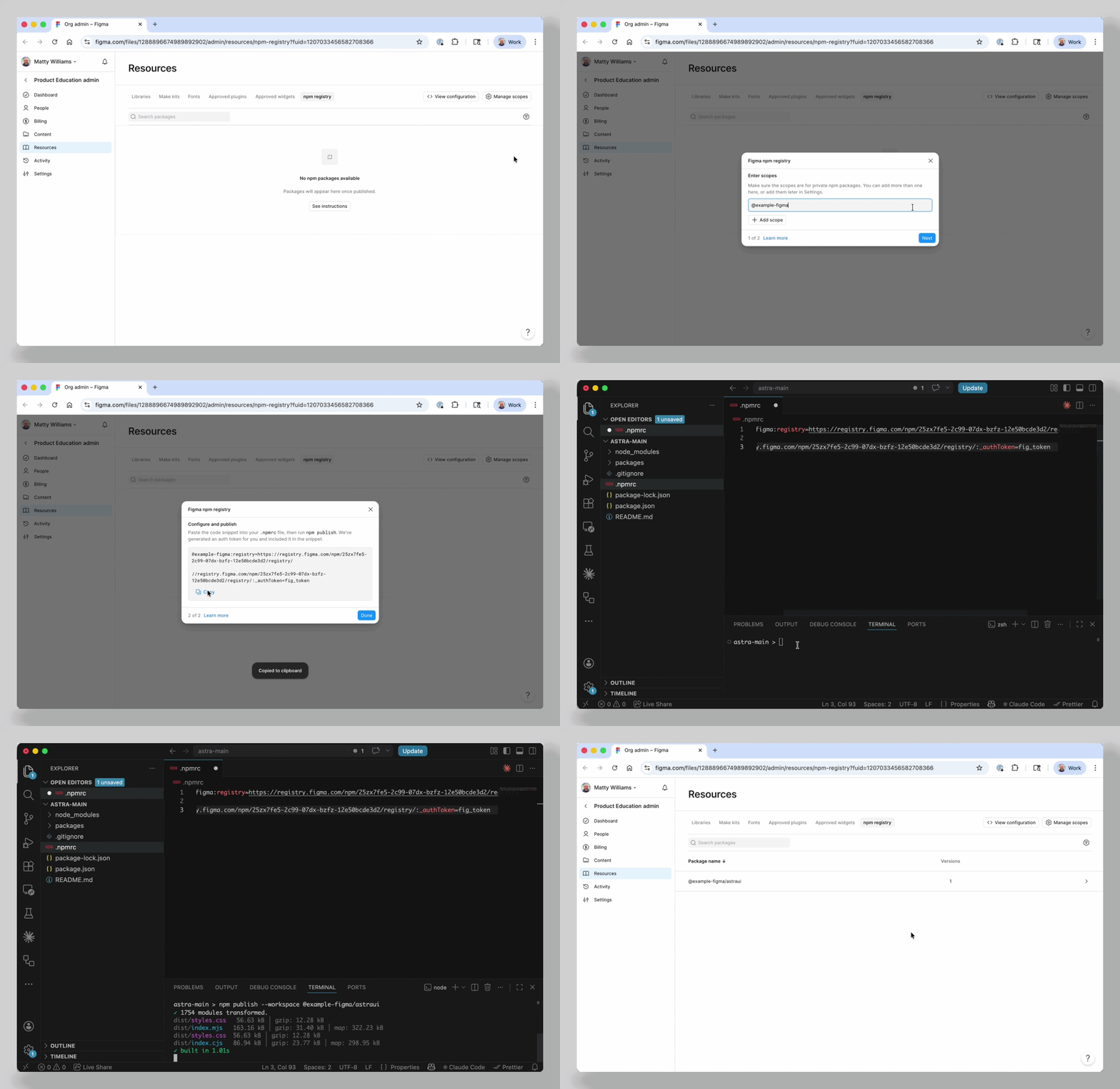
Publish a private package with a new scope
Important: This procedure requires an organization admin. Only an organization admin can manage scopes for an organization.
Steps 6 and 7 can be completed by any user who's normally able to edit your codebase and publish packages.
To create a new scope in the private npm registry and publish a package:
- In the file browser, click Admin in the sidebar.
- Click Resources.
- At the top of the Resources page, click npm registry.
- If you haven't yet, add one or more scopes for your packages:
- In the upper-right corner, click Manage scopes.
- Type a scope name. Ensure that the name is unique and doesn't conflict with any public scopes you currently use.
- Click Next.
- Copy the code snippet.
- In your codebase, paste the snippet into the
.npmrcfile for your package. - Run
npm publishfor each package.
Publish a private package with an existing scope
Important: This procedure requires an organization admin. Only an organization admin can manage scopes for an organization.
Steps 6 and 7 can be completed by any user who's normally able to edit your codebase and publish packages.
- In the file browser, click Admin in the sidebar.
- Click Resources.
- At the top of the Resources page, click npm registry.
- Click View configuration in the upper-right corner.
- Copy the code snippet.
- In your codebase, paste the snippet into the
.npmrcfile for your package. - Run
npm publishfor each package.
When your packages are published, they're listed in the npm registry section of the Resources page. You may need to refresh the page.
Add your design system package to a Make kit
Once you've published your library, include it in a Make kit. Make kits are the best way to get your teammates using your design system package. When your teammates use Figma Make, they can add the Make kit to their file, which delivers the package along with any guidelines and supporting files you've added. If you're a part of a Figma organization, an admin can set your Make kit to be included in new Figma Make files by default.
To add your package to a Make kit, follow the instructions in Get started with Make kits.
Add guidelines for your design system package to a Make kit
Critical for ensuring Figma Make can use your design package for high-quality, reliable output are guidelines.
When you're assembling your Make kit, Figma Make can generate the guidelines for your package automatically. If you prefer, you can also manually write your own guidelines. We recommend letting Figma Make generate the guidelines and then reviewing the result.
See Get started with Make kits to learn about generating guidelines for your Make kits.
For best practices, see Write design system guidelines for Make kits.
Manage private packages
You manage private packages that you've previously uploaded via the npm registry section of your organization's admin Resources page. From the Resources page, you can delete individual versions of packages or entire packages.
First, access the npm registry section of the Resources page:
- In the file browser, click Admin in the sidebar.
- Click Resources.
- At the top of the Resources page, click npm registry.
View .npmrc code snippet
Important: This procedure requires an organization admin. Only an organization admin can manage scopes for an organization.
To see the code snippet for the .npmrc file in your packages, click View configuration in the upper-right corner. When you view the configuration, a fresh access token is generated in the code snippet.
Delete a version of a private package
To delete a single version of a private package:
- In the row for the package you want to manage, click
>. - Click the Delete version icon next to the version you want to remove.
Delete an entire package
To delete an entire private package:
- In the row for the package you want to manage, click
>. - Click Delete all.
Troubleshooting
If you're having trouble getting your package to work in Figma Make, it can help to test that your package builds with Vite by creating a local Vite project, installing your package, and debugging any errors that appear.
npm create vite@latest make-setup-app -- --template react-ts
Note: If you have issues and need to reach out to support, we can more easily troubleshoot if you include an archive of this local Vite project with your support request.